
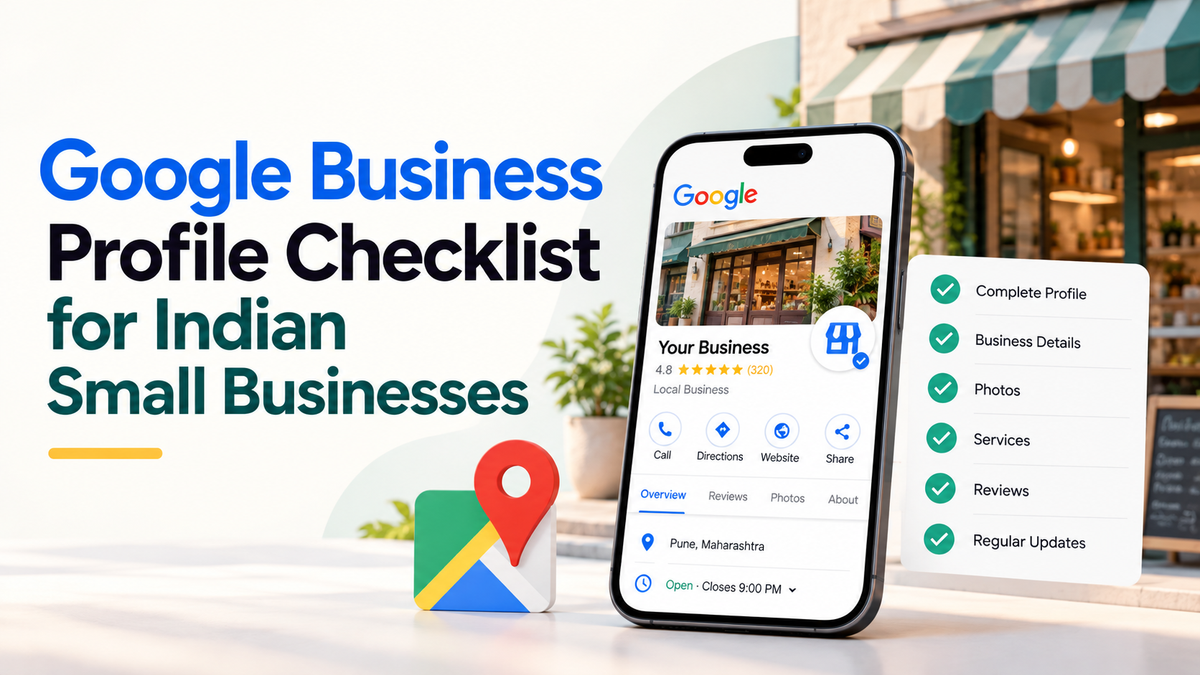
What should I do first to set up a Google Business Profile? Make sure the details match your real business. Then create or claim one profile for that business, add accurate categories and contact details, and complete verification with real evidence. Google controls verification and how profiles appear in Maps and search. No agency can guarantee a position, a verification date or a set number of reviews.
A Google Business Profile is a free listing in Google's business tools. It can show your name, address or service area, hours, phone number, website and photos in Google Search and Maps. This checklist is for a business that serves customers in a way Google allows. Paid help can save time with set-up and upkeep, but it cannot skip Google's checks.
Before you start: check your eligibility
Google's rules depend on how you serve customers. Decide which of these describes you.
- A shop or office that customers visit. You can show a public address where customers can come during opening hours.
- A service-area business. You go to customers, such as an installer or a mobile repair service. You can list the areas you serve, and you may be able to hide your address.
- A hybrid business. Customers visit a place and you also travel to serve people. Set the address and service areas as Google's form allows.
If you are unsure, read Google's current Business Profile help pages before you enter an address. Do not use an address that is not a real place where your business operates.
Checklist part 1: name, category, address and contact
- Name. Use the name customers see on your signboard, bills and website. Do not add search terms or city names that are not part of the business name.
- Category. Choose the closest main category. Add secondary categories only where they truly fit what you do.
- Address or service areas. Enter the address as customers would find it. For a service-area business, list only the areas you genuinely serve.
- Phone. Use a number that is answered during your published hours.
- Website. Link to your real website, ideally to the page for the service this profile covers.
- Hours. Set regular hours, and add holiday hours in advance, including festival closures.
- Consistency. The name, address and phone number should match your website, invoices and any other directories you use.
Checklist part 2: photos, services and description
- Real photos. Upload pictures of your premises, team, work and products as they really are.
- Clear images. Use bright, sharp photos. Avoid stock images, and never use pictures of another business.
- Logo and cover. Add a logo and cover image that match your brand.
- Services. List only the services you actually offer, with plain names and short descriptions.
- Description. Write for customers. Say what you do, where you do it, and who it is for.
- Updates. Replace photos when your premises or your work changes.
Checklist part 3: reviews from real customers
Reviews help customers decide, and Google treats them carefully. Ask real customers for a review after a job is complete, using a short link or a printed card. Reply politely to every review, including the negative ones.
Checklist part 4: verification
Google verifies the business, not Klyroo or any agency. Google may offer several verification methods, such as a postcard, a phone call or a video, depending on your case. Nobody can promise instant verification.
- Keep your business name, address and owner details consistent with your documents.
- If Google asks for a video, film a short, real clip of your premises or your work, as Google requests. Do not use edited or staged footage.
- Use a business login that an authorised manager controls, not a personal account that only one person can access.
- Follow Google's instructions and wait for the outcome. Do not send repeated requests in a short time.
Checklist part 5: duplicates and old listings
- Search Google Maps for your business name and address before creating a profile.
- If a duplicate exists, use Google's official route to claim it or request its removal. Do not create a second listing to replace the first.
- Ask any earlier web or marketing provider which profiles they created, and make sure you hold the login.
Checklist part 6: keep it current
- Review the profile every month, even if nothing has changed.
- Update hours when they change, including holiday closures.
- Post updates or offers only when they are true and current.
- When your address, phone number or name changes, update the profile, the website and any directories together.
What Google controls
Google decides whether a profile is verified and how it appears in Search and Maps. Accurate details, real photos, a working website and genuine customer reviews give your profile an honest basis. Even so, no one can guarantee a position on Maps or in search results.
Next step
Work through this list once, then check it again after any change to your hours, address or phone number. If you want help, Klyroo can review your profile, website and contact details with you and explain what needs to change, as part of its search and local discovery work. You can contact Klyroo to start the conversation, or read about Klyroo's services.
Frequently asked questions
- Can you make my business appear first on Google Maps?
- No one can guarantee a position on Maps. Google uses many signals. Accurate details, real photos, a working website and genuine reviews give your profile the best honest foundation.
- Can I use my home address?
- Only if your business meets Google's rules for that set-up. If you serve customers at their location, you may be able to list service areas and hide your address. Check the current guidance before you enter anything.
- Do I have to pay to create a profile?
- Google provides the profile service without a fee. Paid help, such as Klyroo's services, covers set-up, content and upkeep, and it cannot replace Google's verification.